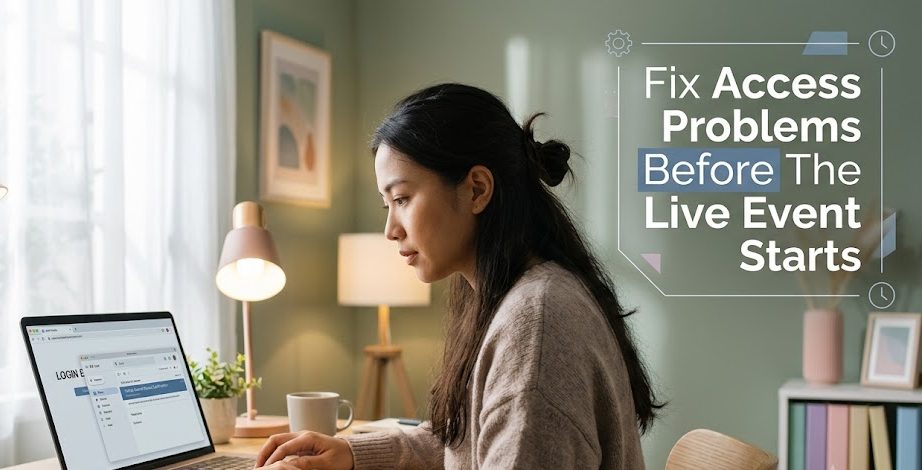
Livestream access problems usually appear at the worst time. The event is about to start, the reminder email is already open, the speaker may be waiting, and suddenly the access link does not work. Instead of joining calmly, viewers start refreshing the page, checking passwords, searching old emails, and wondering whether they missed something important.
This happens often with webinars, virtual conferences, online classes, ticketed livestreams, training sessions, and private community events. The problem is not always the viewer’s fault. Sometimes the organizer sends an updated link. Sometimes registration is incomplete. Sometimes the browser blocks the page. Sometimes the event platform only opens access a few minutes before the schedule.
For Join Livestream Sound of Text, this topic belongs in the Access category because it helps viewers solve the practical barrier before joining an online event. The goal is simple: understand the most common access errors, know what they usually mean, and fix the problem before the event begins.
Access Problems Usually Have A Pattern
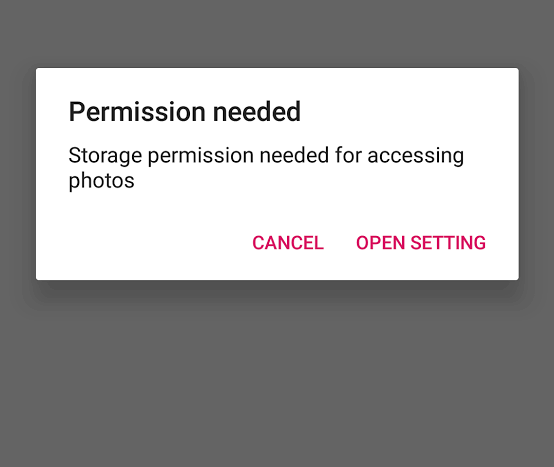
Most livestream access errors look confusing because they appear in different words. One platform may say “access denied,” another may say “invalid link,” while another shows “registration required” or “meeting password incorrect.”
The Error Message Is A Clue, Not Just A Problem
When an access page fails, do not only refresh the browser again and again. Read the message carefully. It often gives a clue about what went wrong.
Some errors are related to the link. Some are related to login. Some are related to registration. Some are related to the browser, app, or event schedule.
Here is a quick guide:
| Error Message Or Problem | Possible Reason | First Fix To Try |
|---|---|---|
| Livestream link not working | Old link, copied link error, event not open yet | Reopen the latest email and click the original button |
| Access denied | Wrong account, private event, incomplete registration | Log in with the registered email |
| Registration required | You have not completed the sign-up form | Find the registration confirmation email |
| Password not working | Wrong password, extra space, updated event code | Copy the password carefully or request a new one |
| Waiting room only | Host has not opened the event | Stay on the page and wait |
| Page not loading | Browser cache, connection, blocked script | Try another browser or incognito mode |
| Ticket not found | Wrong email, payment issue, different account | Check ticket confirmation and payment receipt |
The fix becomes easier when you match the error with the likely cause.
The Livestream Link Not Working Problem
One of the most common searches before online events is something like “livestream link not working” or “webinar link not opening.” This error can happen even when the event is legitimate.
The Latest Email Often Has The Correct Link
Many online events send more than one email. There may be a registration confirmation, reminder email, updated access notice, calendar invite, and final joining link.
A viewer may accidentally click the first email, while the organizer has already sent a new link later.
Check your inbox for:
- event title
- organizer name
- “join event”
- “access link”
- “webinar reminder”
- “your ticket”
- “updated link”
- “final reminder”
Use the newest email first. If the email has a button and a raw link, try the button first. If that fails, copy the raw link directly into the browser.
Copying The Link Can Break It
Some access links are long. They may include event tokens, tracking codes, ticket IDs, or private access keys. If you copy only part of the link, it may not work.
Avoid copying from a broken line in a message app. If possible, click the original link from the email instead of copying it manually.
If you must copy it, make sure there is no missing character and no extra space at the end.
The Webinar Access Denied Problem
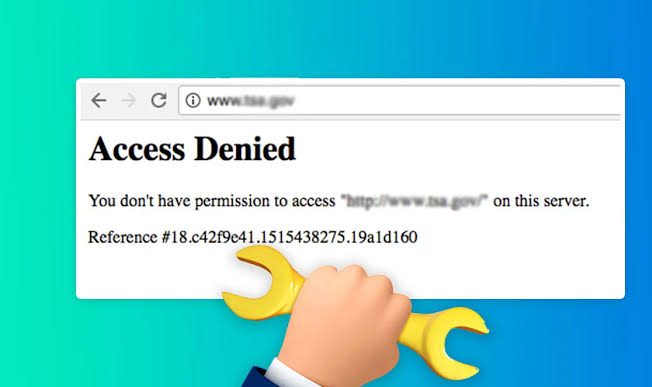
“Access denied” can feel serious, but it does not always mean you are blocked. It often means the platform cannot match your current account with the registered attendee list.
The Wrong Email Account Can Block Access
This is very common. A viewer registers with one email but tries to join using another.
For example:
- registered with work email
- opened link from personal email
- browser is logged into a different account
- platform uses an old account automatically
If the event requires login, check whether you are using the same email used during registration.
A simple fix:
- Log out from the event platform.
- Close the browser tab.
- Open the latest event email.
- Log in with the registered email.
- Click the access link again.
This small reset solves many access denied problems.
Private Events May Require Approval
Some events are not open immediately after registration. The organizer may need to approve attendees, especially for paid training, internal meetings, private webinars, or member-only sessions.
If you registered but did not receive confirmation, search for an approval email. If there is no approval, contact the organizer before the event starts.
The Password Or Event Code Not Working Problem
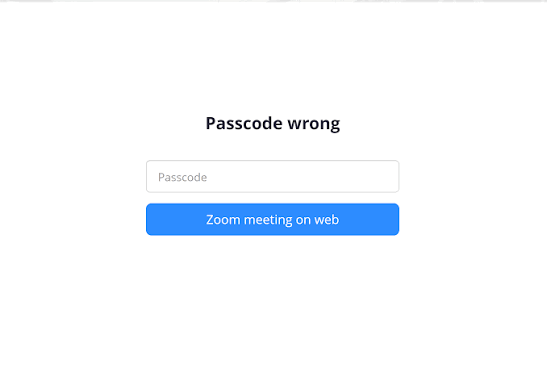
Some livestreams use passwords, passcodes, event codes, or ticket codes. These are useful for privacy, but they can create small errors.
Extra Spaces Can Make Passwords Fail
When copying a password, viewers sometimes copy an extra space before or after the code. The platform may read that as part of the password.
Try typing the code manually. Pay attention to:
- uppercase letters
- lowercase letters
- numbers that look like letters
- letter O vs number 0
- letter I vs number 1
- extra spaces
- old password from an earlier email
If there are several reminder emails, use the newest password.
Ticket Codes And Event Passwords Are Not Always The Same
A ticket number may not be the same as a livestream password. Some viewers enter their ticket ID into the password box and get rejected.
Check the label carefully:
- “ticket number” is usually for proof of registration
- “event password” is usually for entering the room
- “access code” may be used for private entry
- “order ID” is usually for payment or support
If the platform asks for a password, do not assume your ticket number is the answer unless the organizer clearly says so.
The Registration Required Problem
Sometimes viewers click a livestream link and see “registration required,” even though they believe they already signed up.
Registration May Not Be Complete
Some registration forms have several steps. You may enter your email but forget to click the final confirmation button. For paid events, access may not activate until payment is completed.
Check whether you received:
- registration confirmation
- ticket confirmation
- payment receipt
- calendar invite
- access email
- QR code or attendee ID
If you only received a newsletter signup email, you may not have completed the actual event registration.
The Organizer May Use Separate Registration And Viewing Platforms
This also happens often. The event may be promoted on one website but hosted on another platform. Registering on the event page does not always mean you are already logged into the livestream platform.
For example, you may register on the organizer’s website but still need to create or verify an account on the webinar platform.
Read the instruction email carefully. The access step may be separate from the registration step.
The Page Loads But The Livestream Does Not Play
Sometimes the viewer can enter the page, but the video player does not start. This is usually different from an access problem. It may be a browser, device, or connection issue.
Browser And Cache Problems Are Easy To Miss
If the page opens but the stream does not play, try these fixes:
- refresh the page once
- open the link in another browser
- use incognito or private mode
- clear browser cache
- disable aggressive ad blockers temporarily
- check whether JavaScript is blocked
- update the browser
- try the official app if available
Do not keep refreshing too many times in panic. If the issue is cache or browser-related, repeated refreshes may not help.
Internet Connection Can Affect Access Too
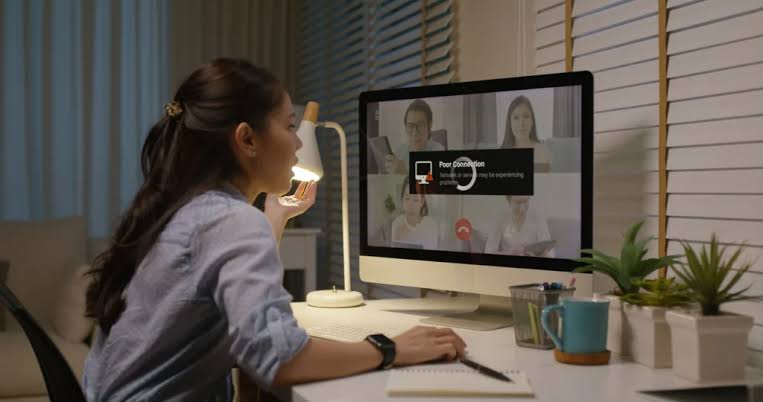
A weak connection may make the platform look broken. The login page may load, but the video player fails.
Try:
- moving closer to Wi-Fi
- switching from mobile data to Wi-Fi
- closing heavy downloads
- turning off VPN if it blocks the platform
- restarting the router
- joining from another device
If the event is important, test the access link at least 15–30 minutes before the start time.
The Waiting Room Is Not Always An Error
A waiting room can confuse viewers because it may look like nothing is happening. But in many events, the waiting room simply means the host has not started yet.
Stay If The Event Time Is Close
If you see a message like “waiting for host,” “event will begin soon,” or “you are in the waiting room,” stay there if the event is close to starting.
Do not close the page too quickly. Some platforms will automatically move you into the event once the host opens the room.
Check The Time Zone Before Panicking
Time zone mistakes are common in international online events. A viewer may think the event starts now, but the schedule is listed in another time zone.
Check whether the time is shown in:
- EST
- PST
- GMT
- UTC
- CET
- your local time
- organizer’s local time
If the event has a calendar invite, open it from your calendar app. Calendar apps often convert time zones automatically.
A Practical Access Checklist Before Any Online Event
The best way to avoid livestream access problems is to check the boring details early. Most access issues are easier to fix before the event starts than during the first five minutes.
Use This 15-Minute Access Check
Before joining, prepare these things:
- Open the latest event email.
- Confirm the event date and time zone.
- Check the registered email account.
- Click the official access link.
- Prepare the password or event code.
- Test the browser or app.
- Check audio and video if needed.
- Keep the ticket or receipt nearby.
- Close unnecessary tabs.
- Contact support if the link fails early.
This checklist is simple, but it covers the most common problems.
The Best Fix Is Early Testing
Livestream access problems are stressful because they block viewers before the event even begins. But most of them have practical causes: old links, wrong accounts, incomplete registration, password mistakes, browser issues, or time zone confusion.
The smartest habit is to test access early. Do not wait until the speaker starts. Open the link, check the email, confirm the password, and make sure the platform recognizes you.
A good online event experience often begins before the first slide, song, speaker, or session appears. It begins when the access works smoothly enough that you can enter the room without panic.

Minh Thư Đặng has worked in virtual event support for education companies, professional associations, and regional conferences. Her responsibilities included managing registrations, sending access instructions, assisting international attendees, and resolving login problems during live sessions. She now writes straightforward guides about joining webinars, using digital tickets, entering private broadcasts, and participating in online events without confusion.


1 comment
Comments are closed.