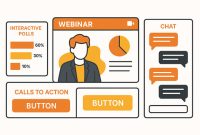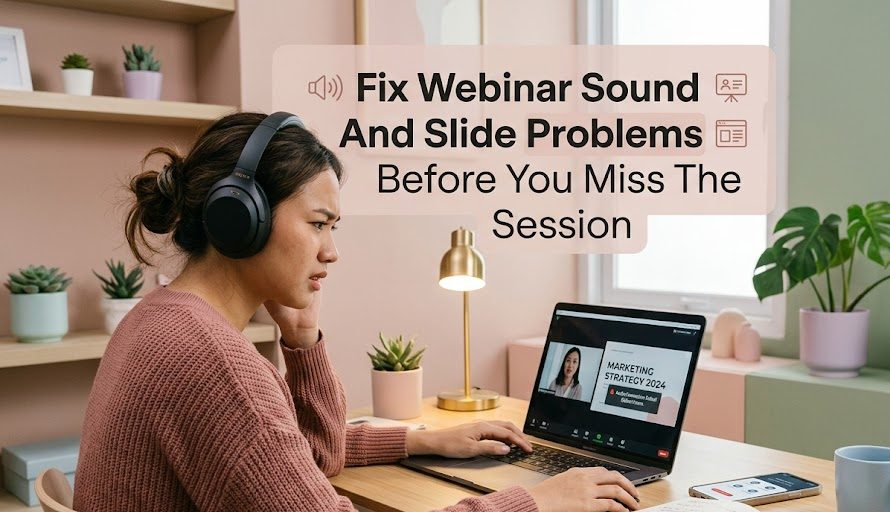
Webinar no sound problems can ruin a live session even when access already works. The viewer may be inside the room, see the speaker’s name, and watch the slides appear, but there is no audio. In other cases, the sound works but the slides stop moving, the Q&A box does not appear, or the chat suddenly disappears during an important explanation.
These problems are different from ticket or access issues. The viewer has already joined the webinar. The real problem is participation. If the sound, slides, chat, or Q&A features fail, the viewer may miss the main value of the session even though they are technically present.
For Join Livestream Sound of Text, this topic belongs in the Webinars category because it helps viewers handle common problems during a live webinar. The goal is not only entering the event, but staying able to listen, follow, ask, and collect useful information from the session.
Webinar Problems Often Start After The Room Opens

Many viewers feel relieved once the webinar page loads. But the live room is only the beginning. Audio, slides, chat, Q&A tools, browser permission, internet speed, and device settings still affect the experience.
The First Minute Should Be Used For A Quick Check
The first minute of a webinar is not only for waiting. It is the best time to check whether everything works before the speaker reaches important material.
A simple first-minute check includes:
- speaker audio
- headphone or speaker output
- slide movement
- chat visibility
- Q&A button
- screen size
- browser stability
- internet connection
- recording or replay notice
- handout or resource link
This quick check prevents viewers from realizing too late that they missed half of the session with the sound muted.
The Problem May Come From Your Device Or The Platform
When something fails, viewers often blame the webinar platform immediately. Sometimes that is true. But many problems come from the viewer’s browser, audio output, permissions, internet speed, or device settings.
A webinar issue is easier to fix when you separate the possible causes:
| Problem | Common Cause | First Thing To Try |
|---|---|---|
| No sound | Muted tab, wrong output device, platform audio not joined | Check browser tab sound and audio device |
| Frozen slides | Weak connection, browser lag, presenter delay | Refresh once or switch browser |
| Q&A not showing | Wrong view mode, browser issue, host disabled Q&A | Look for panel buttons or use chat if allowed |
| Chat not working | Host disabled chat, login issue, app limitation | Check whether chat is available for attendees |
| Speaker video not loading | Low bandwidth or platform issue | Turn off other heavy apps and refresh |
| Handout missing | Link shared in chat or email only | Check pinned messages and follow-up email |
The key is not panic-clicking everything. Try the simplest fix first.
Webinar No Sound Needs A Step-By-Step Fix

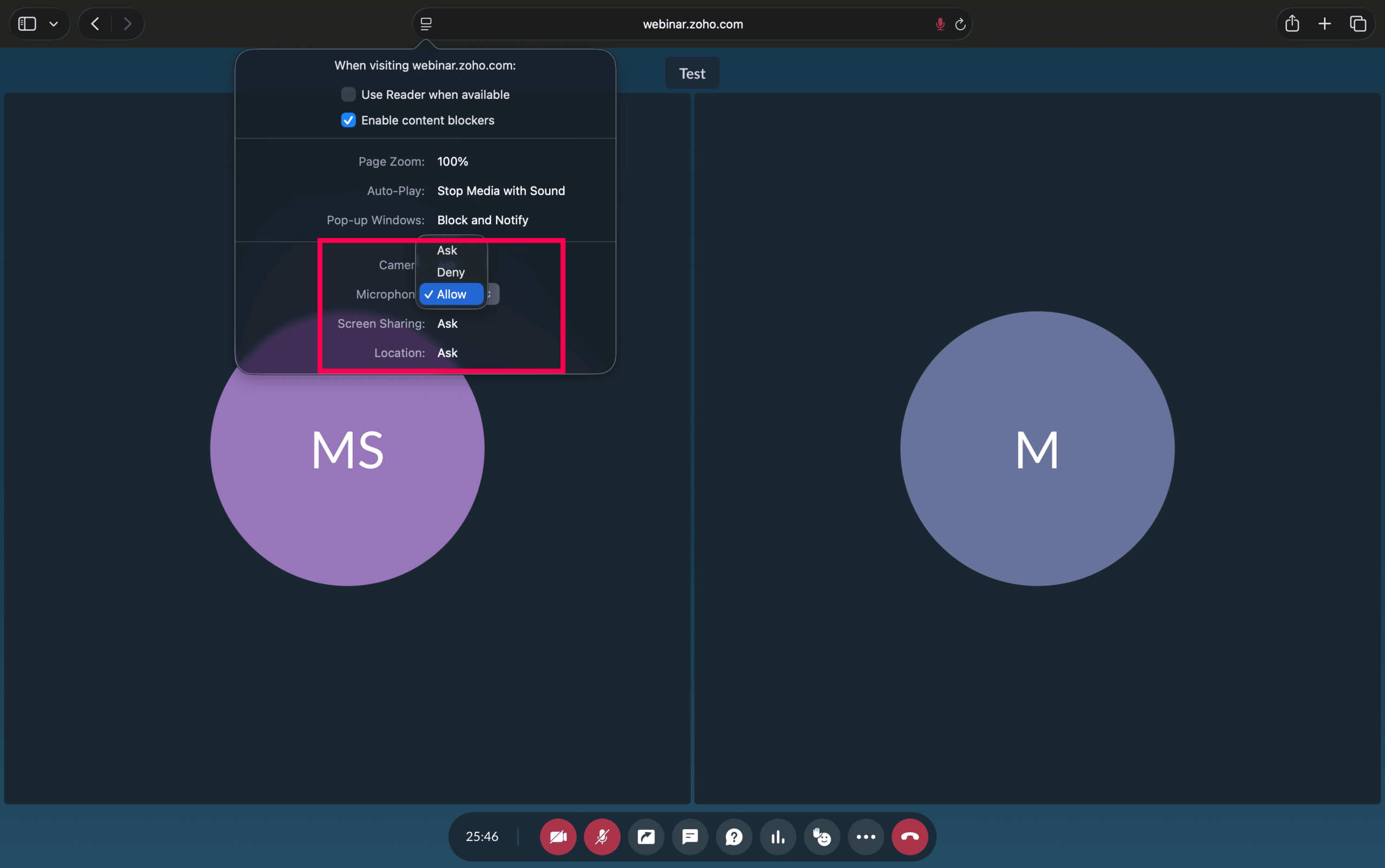
No sound is one of the most frustrating webinar problems because viewers can see the event happening but cannot follow it. The fix depends on where the sound is being blocked.
Check The Browser Tab Before Changing Everything
Some browsers allow individual tabs to be muted. If the webinar tab is muted, the platform may look normal but produce no audio.
Check whether the tab has a muted speaker icon. Right-click the tab if needed and choose unmute. Also check whether your system volume is low or the wrong output device is selected.
For example, your laptop may be sending sound to:
- Bluetooth earbuds you are not wearing.
- An external monitor with no speaker.
- A disconnected headset.
- A muted browser tab.
- The correct speaker but very low volume.
This is a simple problem, but it happens often.
Rejoin Audio Without Leaving The Webinar
Some platforms have a separate “join audio” or “connect audio” button. Viewers may enter the room but forget to connect the sound.
Look for buttons such as:
- Join Audio
- Computer Audio
- Connect Sound
- Audio Settings
- Test Speaker
- Leave Audio
- Reconnect Audio
If the platform has audio settings, test the speaker from there. If the test sound works but the speaker is still silent, the host may not have started audio yet or may be muted.
Switch Device Only After The Basic Fixes Fail
Do not immediately move to another device if the problem may be small. First, check tab sound, system volume, output device, and platform audio. If all fail, then try another browser or device.
A phone can sometimes work better than a laptop when the browser is causing the issue. A laptop can work better than a phone when the webinar requires full Q&A or handout access.
Frozen Slides Can Mean Different Things


Frozen slides are confusing because the viewer may not know whether the speaker stopped presenting or the viewer’s screen stopped updating.
Refresh Once, Then Wait For The Room To Reload
If the audio continues but the slides stop moving, try refreshing the page once. Do not refresh repeatedly every few seconds because the platform may need time to reconnect.
After refreshing, check whether:
- the slide changed
- the speaker video continues
- chat messages update
- the time indicator moves
- other viewers mention the same issue
If other viewers are also saying the slides are frozen, the issue may be on the presenter’s side.
Lower The Load On Your Device
A frozen webinar can happen when the device is overloaded. This is common if many tabs, video calls, downloads, or apps are open.
Close unnecessary tabs and apps, especially:
- video streaming sites
- cloud sync apps
- large downloads
- games
- screen recording tools
- extra browser windows
If your internet is weak, avoid using the same connection for heavy downloads during the webinar.
Q&A And Chat Problems Affect Participation
A webinar is not only a video. Many sessions use Q&A, chat, polls, resource links, and moderator messages. If those features are missing, viewers can lose the chance to participate.
Q&A May Be Hidden In A Separate Panel
Some platforms separate chat and Q&A. The chat may be for general comments, while Q&A is for official questions. If you type a question in the wrong place, the moderator may not see it.
Look for panel names such as:
- Q&A
- Questions
- Ask
- Chat
- Discussion
- Comments
- Raise Hand
If the Q&A box is missing, check whether the screen is too narrow. On mobile devices, some webinar tools hide features behind menu icons.
Chat May Be Disabled On Purpose
If the chat does not work, it may not be an error. Some organizers disable chat to reduce spam, keep the session focused, or direct all questions into the Q&A box.
Before assuming the chat is broken, check the webinar instruction. The host may say:
- “Please use Q&A for questions.”
- “Chat is disabled for this session.”
- “Questions will be answered at the end.”
- “Use the form link for questions.”
If chat is disabled, do not waste the session trying to force it open. Use the official question method.
Handouts, Replay Links, And Certificates Are Easy To Miss
Many viewers focus only on the live video and forget the supporting materials. In webinars, important links may appear briefly in chat, slides, follow-up emails, or pinned messages.
Resource Links Often Appear During The Session
If the webinar includes handouts, slides, worksheets, or bonus materials, the link may be shared during a specific part of the session.
Check:
- pinned chat
- moderator messages
- slide QR codes
- event email
- resource tab
- follow-up email
- attendee dashboard
Take notes when the host mentions resources. Do not wait until the end if the chat moves quickly.
Replay Availability Should Be Confirmed Early
Not all webinars provide replays. Some offer replay access for 24 hours, 7 days, paid members only, registered attendees only, or not at all.
If you depend on replay, check the rule before leaving the session.
Look for phrases like:
- “Replay will be emailed.”
- “Recording available for registered attendees.”
- “No replay will be provided.”
- “Replay access expires after 48 hours.”
- “Slides will be shared after the event.”
This matters if your audio or slides fail during the live session. A replay can save the learning experience, but only if it is actually available.
A Better Way To Recover When Problems Continue
Sometimes none of the quick fixes works. In that case, the best move is to collect proof and contact support clearly.
Send A Useful Support Message
A helpful support message should include:
- Event title.
- Time the problem started.
- Device used.
- Browser or app used.
- Error message if any.
- Screenshot if possible.
- Registered email.
- Short explanation of what you already tried.
Instead of saying, “The webinar doesn’t work,” say:
“I joined the webinar using Chrome on Windows. The video loaded, but there was no sound from 10:05 AM. I checked my system volume, unmuted the browser tab, and rejoined audio, but the problem continued.”
That message is easier to understand and faster to troubleshoot.
A Simple Webinar Survival Checklist
Before and during any important webinar, use this checklist:
- join 10 minutes early
- test speaker or headphones
- check the webinar tab is not muted
- open chat or Q&A panel
- confirm whether questions go in chat or Q&A
- close heavy apps and downloads
- note handout or replay instructions
- screenshot important confirmation pages
- save follow-up emails
- contact support early if the issue continues
This checklist is especially useful for training sessions, professional webinars, paid workshops, and events where missing information can cost time or money.
The Best Webinar Experience Depends On More Than Joining
A webinar can technically open while still failing the viewer. No sound, frozen slides, missing Q&A, hidden chat, and lost handout links can all make the session less useful.
The safest habit is to treat the first few minutes as a system check. Confirm sound, slides, chat, Q&A, and resource instructions before the content becomes important.
Joining is only the door. A good webinar experience happens after the door opens, when the viewer can actually hear, follow, ask, and leave with the information they came for.


Minh Thư Đặng has worked in virtual event support for education companies, professional associations, and regional conferences. Her responsibilities included managing registrations, sending access instructions, assisting international attendees, and resolving login problems during live sessions. She now writes straightforward guides about joining webinars, using digital tickets, entering private broadcasts, and participating in online events without confusion.